
Official Safe-to-Spend app iconMonthly spending guard and budget target

Safe-to-Spend

A personal budget app focused on monthly spending guard, daily pace, budget targets, exclusions, accounts, transactions, and practical money control.

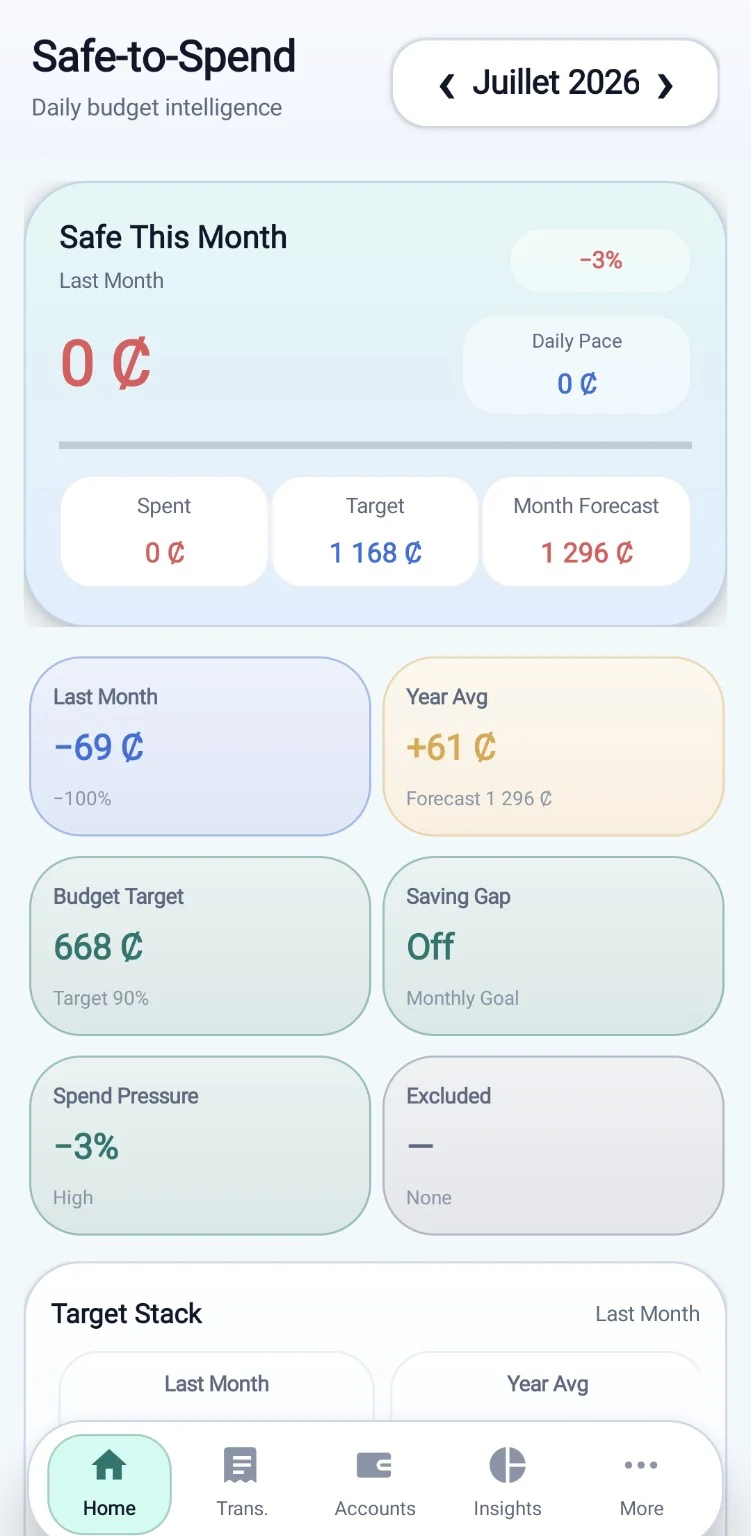
It shows what is safe to spend this month, compares current spending with last month and the year average, forecasts the month, and keeps the underlying records organized.

Official Safe-to-Spend app icon

What the app offers

Safe-to-Spend combines transaction tracking with a monthly guard. The user records income, expenses, and transfers, then follows the safe-to-spend amount, daily pace, budget target, month forecast, spend pressure, and saving gap from one home screen.

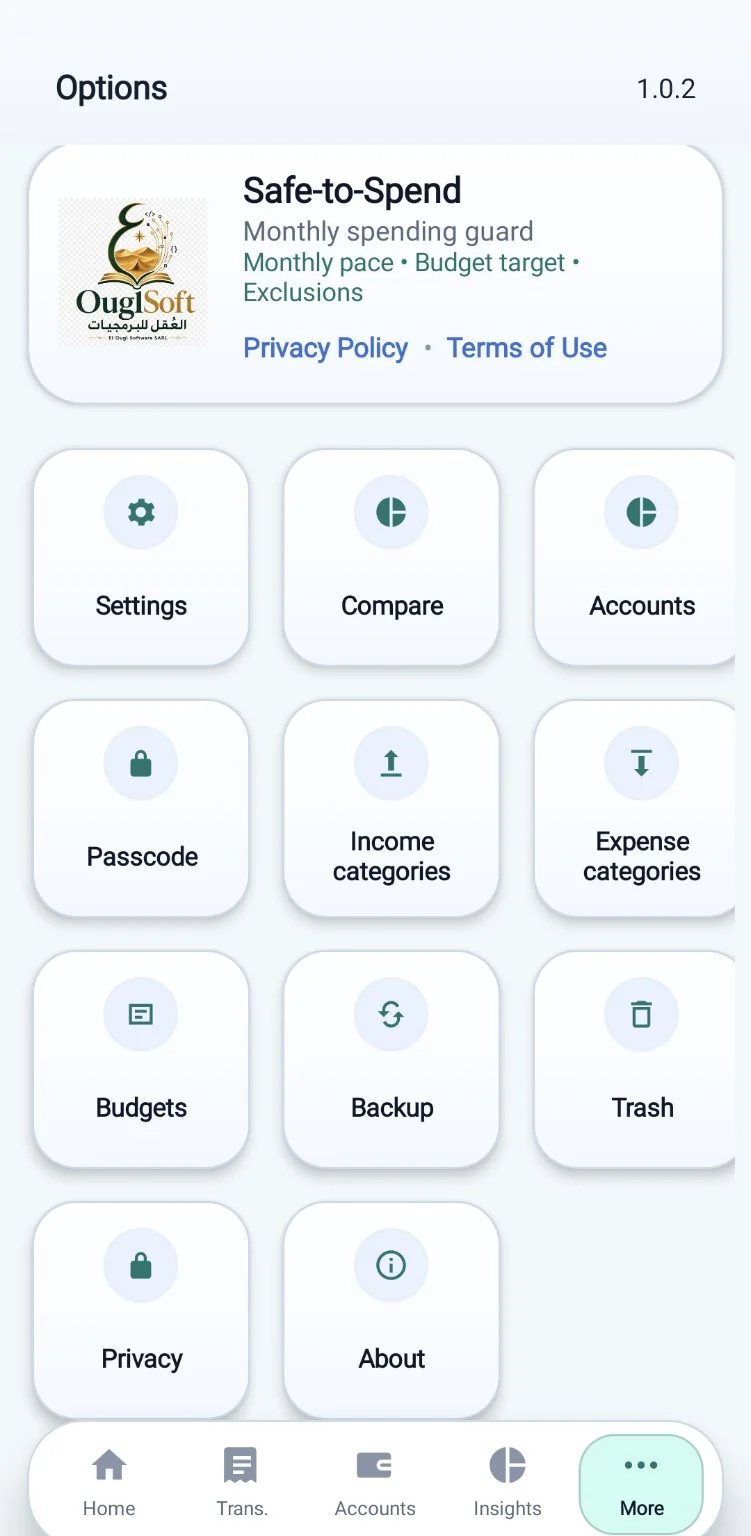
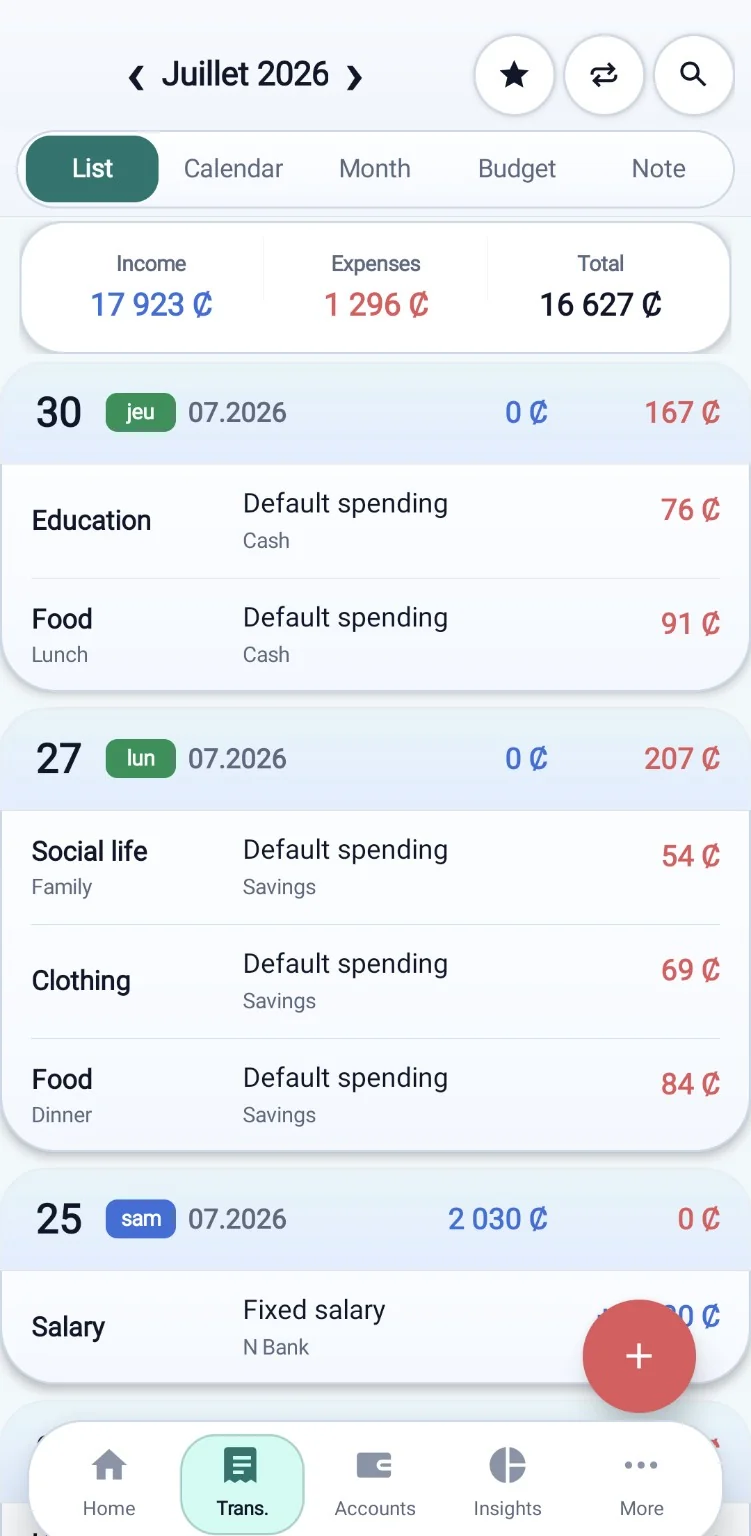
The app also includes list, calendar, month, budget, and note views; account groups; income and expense categories; budget caps by category; exclusions; comparison tools; passcode protection; trash; app-file backup; CSV/TSV/TXT import and export; and import/export history.

App features

  • Safe-to-spend monthly guard showing how much remains safe for the current month.
  • Monthly pace indicator comparing current spending with the expected daily pace.
  • Budget target control with target percentage and target amount.
  • Month forecast based on current spending pace.
  • Spend pressure and saving gap indicators for quick risk reading.
  • Target stack comparing last month, yearly average, and budget target.
  • Exclude selected transactions from monthly guard calculations when needed.
  • Compare screen for month-to-month and year-average spending patterns.
  • Record income, expenses, and transfers between accounts.
  • List, calendar, month, budget, and note views for the same monthly data.
  • Daily grouped transaction list with income, expenses, and total summary.
  • Search, favorites, and recurring transaction shortcuts.
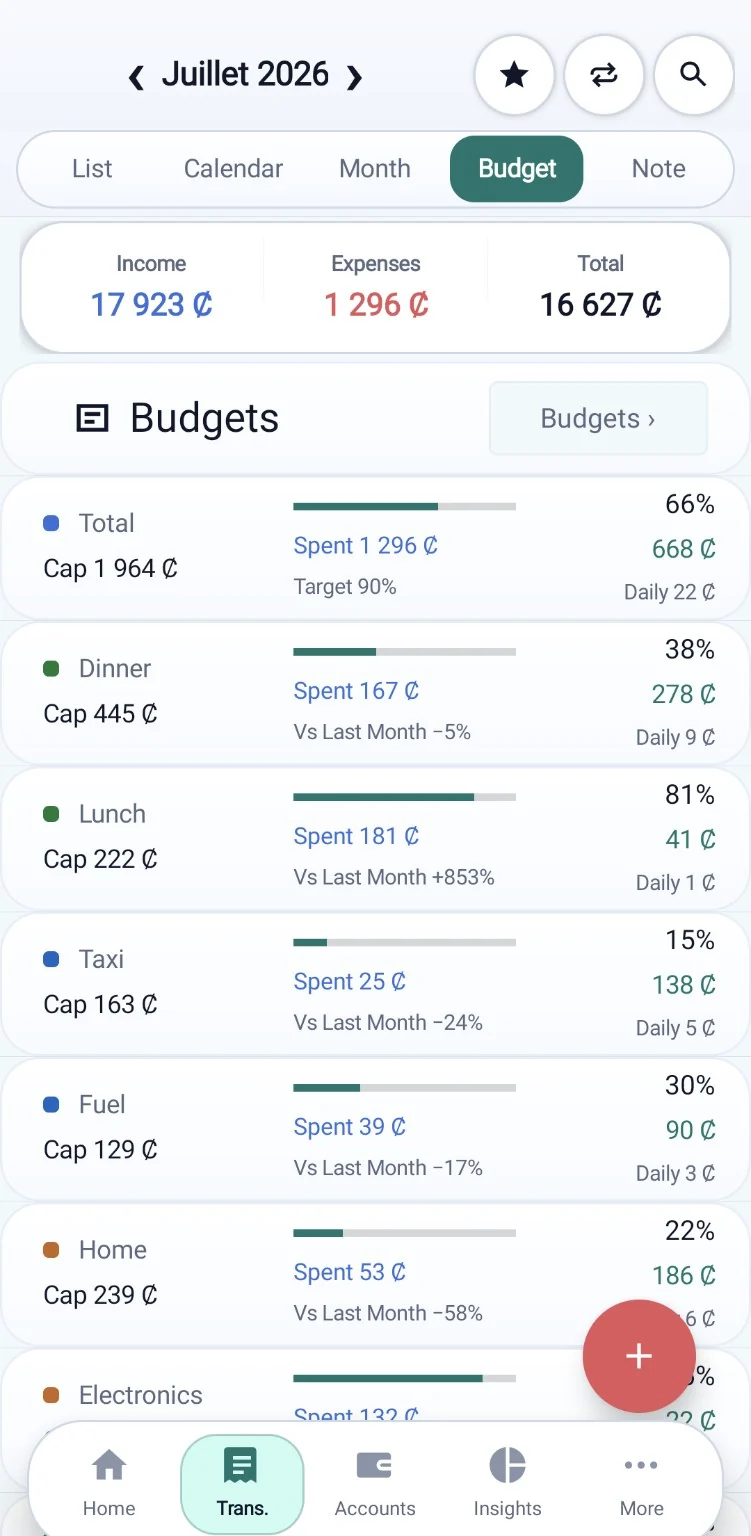
  • Budget cards showing cap, spent amount, remaining amount, percentage used, and daily allowance.
  • Default or month-specific budgets for expense categories.
  • Comparison against last month for each budget category.
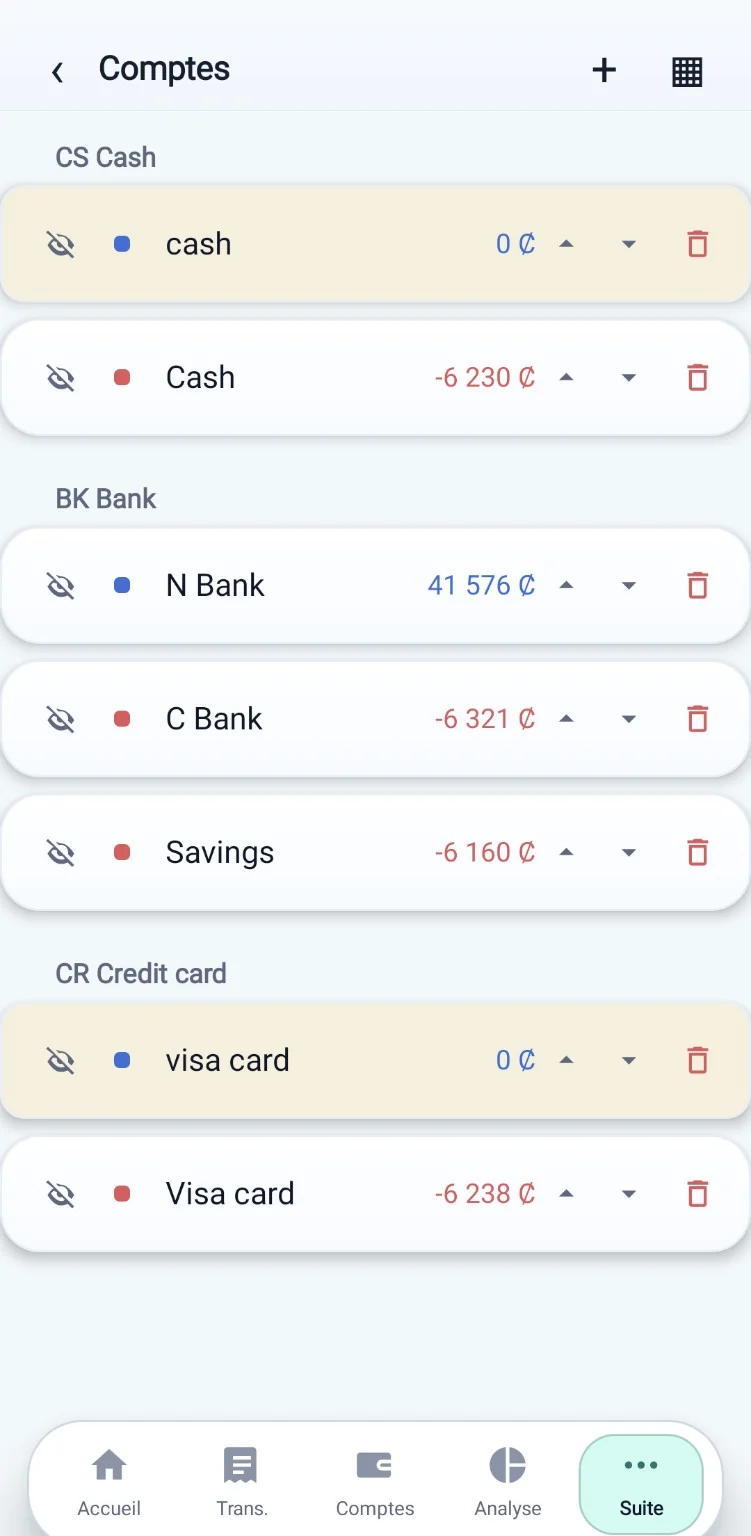
  • Manage accounts in groups such as cash, bank, and credit card.
  • Hide accounts without deleting them and reorder visible accounts.
  • Income and expense category management with category icons.
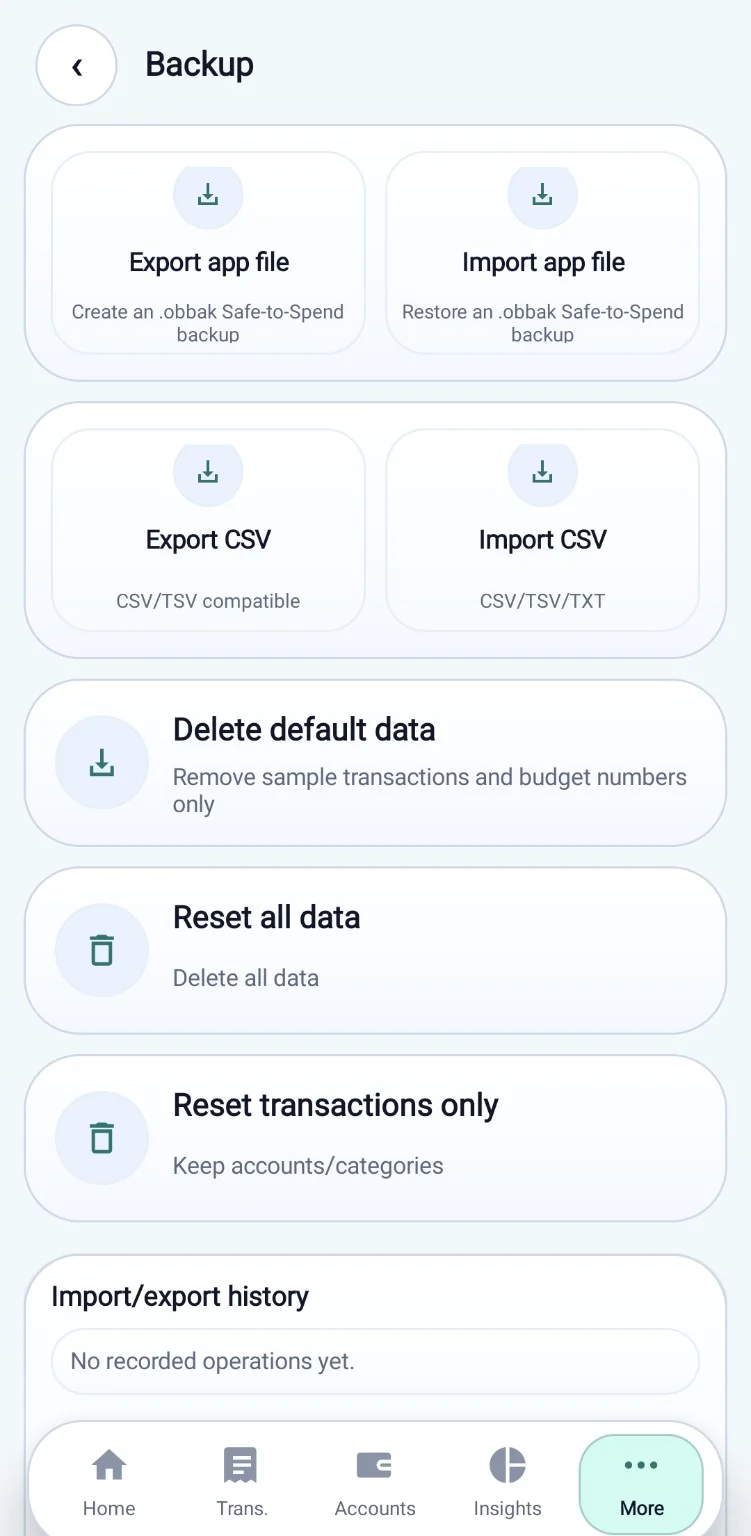
  • Backup app file export and import.
  • CSV, TSV, and TXT-compatible import/export for tabular data.
  • Import/export history and verification after operations.
  • Delete default sample data, reset all data, or reset transactions only.
  • Trash management with restore and permanent delete flows.
  • Passcode protection and privacy controls.
  • Arabic, French, and English interface support.
  • Light and dark mode, currency formatting, week start, and start screen settings.

Screenshots

Android APK

Download and installation

Download the APK from the official OuglSoft website. Install it manually because it is distributed outside the app store.

Latest version Official file

Safe-to-Spend

Monthly spending guard, daily pace, budget target, exclusions, transactions, accounts, backups, and CSV import/export.

File details

App
Safe-to-Spend
Version
1.1.3
Updated
2026-07-03
Platform
Android
Android version
Android 6.0+
Ads
No ads
Required permissions
No declared app permissions
File type
APK installer
File name
safe-to-spend.apk
File size
0.9 MB
Publisher
OuglSoft
Price
Free

Android installation steps

  1. Tap Download APK.
  2. After the download is complete, open the APK file from the browser or from the file manager app.
  3. If a message blocks installation from this source, tap Continue.
  4. If you are taken to the permission page, enable Allow from this source or Install unknown apps for the app you used, such as Chrome or the file manager.
  5. If you are not taken automatically to the permission page, go manually to: Settings > Apps > Special app access > Install unknown apps > choose Chrome or the file manager > Allow from this source.
  6. On Samsung devices, the path may be: Settings > Security and privacy > More security settings > Install unknown apps > choose Chrome or the file manager > Allow from this source.
  7. Return to the APK file and open it again.
  8. If a warning says the app is outside Google Play or from an unknown source, this is expected when installing apps outside the store.
  9. If Google Play Protect asks to scan the app, approve the scan and wait for the result.
  10. Do not continue installation if the result says the app is harmful, unsafe, or blocked.
  11. If no warning blocks installation, tap Install.
  12. After installation is complete, tap Open to run the app.
  13. After installation, disable Allow from this source for the app you granted it to, such as Chrome or the file manager.
  14. To update the app, download the new APK file from this page and install it the same way.
  15. The app is free to download.